Seller Help Guide
Everything you need to know to sell books on Buymeabook
Back to Seller Portal
Welcome to the Buymeabook Seller Help Guide! This portal walks you through every step of selling books on our platform — from setting up your account to managing orders and getting support.
All guides below are for sellers registered on the Buymeabook platform.
If you face any issue, use the Support section to raise a ticket.
Switch to Hindi anytime using the button on the bottom right.
Quick Navigation
Getting Started With Buymeabook
Your guide to registration on our platform. Follow the steps below to set up your seller account and start selling.
Access the Seller Portal
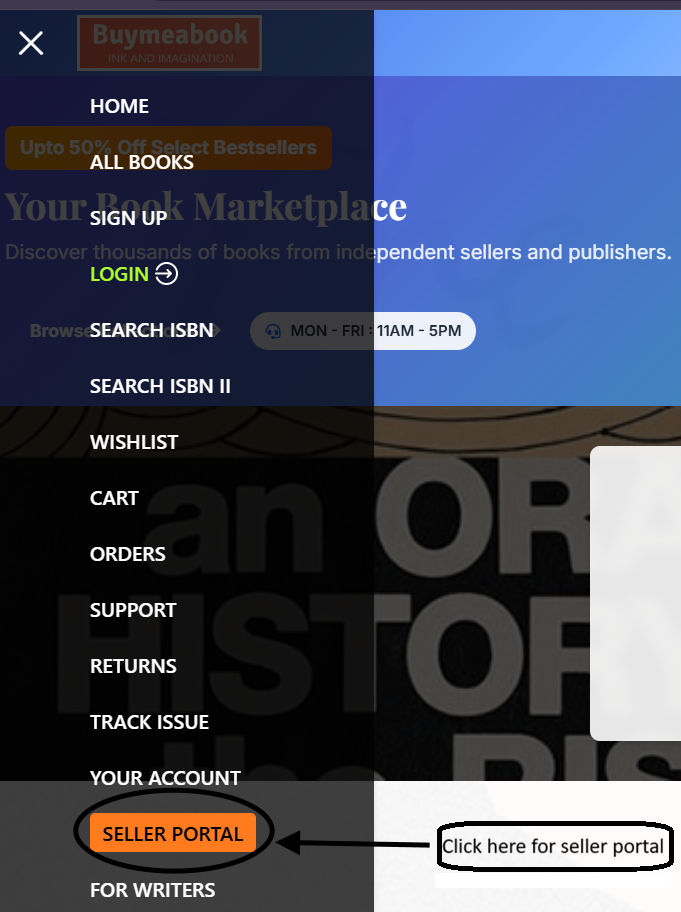
- Navigate to the top left corner burger icon on the home page.
- Locate Seller Portal in the menu.
- Click on Seller Portal to open it.
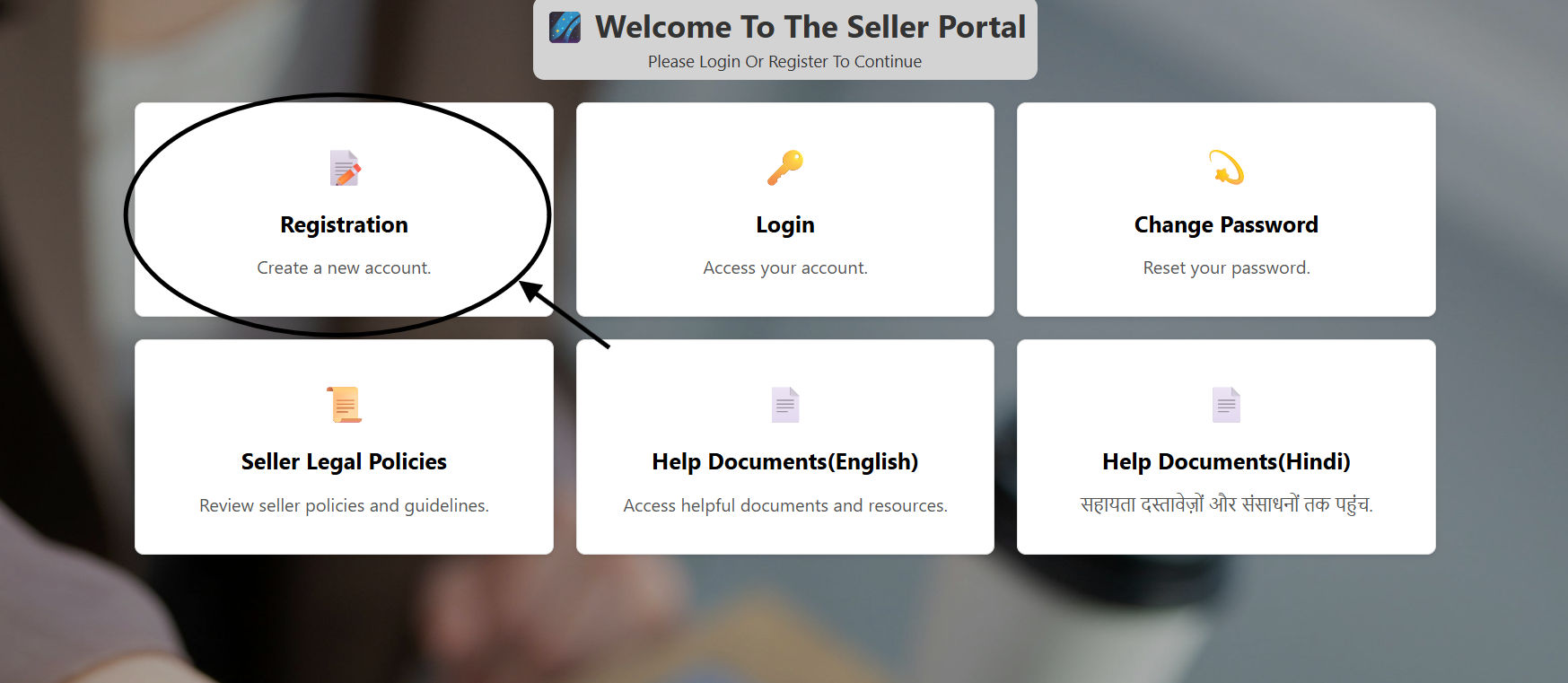
- The Seller Portal will open to the next step.
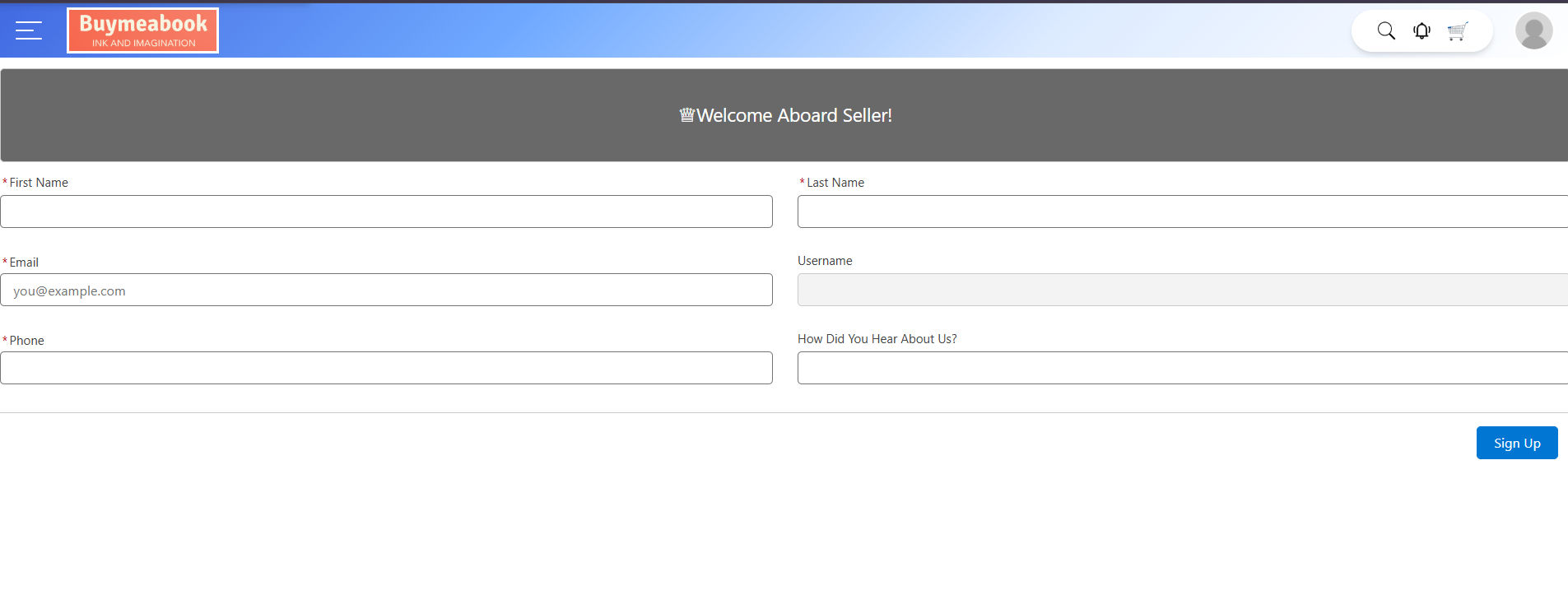
Provide Your Name
- Please provide us with a valid name as this helps us process your onboarding.
- Initiating selling services for you requires accurate name information.
- Providing quality support readily also depends on this.
Complete Your Seller Profile
- Provide a valid name, email, and phone number carefully.
- After completing this, you can log in with your credentials.
Ensure all details are accurate — they are used for shipping, payments, and support communications.
Listing Books for Sale
Your guide to creating effective book listings that attract buyers and sell quickly.
Before You Create a Listing — Gather This Info
- Book title and author
- ISBN (if available)
- Book condition: New, Like New, Very Good, Good, Acceptable
- Your asking price
- Clear photos of the book
Step-by-Step: Creating a Listing
Navigate to Add Listing
- Go to your Seller Portal.
- Click on "Add New Listing" or "List a Book".
Fill In Book Details
- Enter the book title, author name, and ISBN.
- Select the correct condition from the dropdown.
- Set your price in ₹ (INR).
- Add a description mentioning any wear, markings, or highlights.
Upload Photos
- Upload at least one clear photo of the book's cover.
- Additional photos of the spine and interior help buyers make decisions.
Submit Your Listing
- Review all details carefully before submitting.
- Click "Submit Listing" — your book will go live after review.
Tip: Accurate condition descriptions reduce returns and improve your seller rating.
Edit Book Details
Your guide to updating book details after they've been listed. Keep your listings accurate and up to date.
Before You Edit — Make Sure You Have
- Access to your seller account
- The book you want to edit in your inventory
- Any updated information (price, condition, description, etc.)
Go to Your Inventory
- Open your Seller Portal and navigate to My Listings / Inventory.
- Find the book you want to edit.
Open Edit Mode
- Click the Edit button (pencil icon) next to the book listing.
- The edit form will open with the current details pre-filled.
Update & Save
- Update price, condition, description, or photos as needed.
- Click "Save Changes" to apply your updates.
- Changes will reflect on the listing immediately after saving.
You can only edit listings that are active or unsold. Once an order is placed, edits are restricted.
Shipping Guidelines
Essential information for book sellers on packaging and dispatch procedures.
Packaging Requirements
- Branded bags will be supplied by BMB for secure closure.
- Books must be packed securely to prevent damage during transit.
- Insufficient packaging may result in penalties or chargebacks.
- Use bubble wrap or paper padding for fragile or large books.
Dispatch & Courier
- BMB is fully responsible for arranging and executing shipments.
- Shipping is handled solely through Nimbus Post.
- You must select approved carriers and follow shipping regulations.
- Once an order is placed, pack the book and mark it ready for pickup.
Returns & Reverse Shipments
- In case of return, the reverse shipment is also managed by BMB.
- Ensure the book is in the same condition as listed to avoid disputes.
Important: Always pack your books before the scheduled pickup window to avoid order cancellations.
Seller 360 Overview
Essential platform overview for sellers — manage orders, process shipments, and track your performance.
Process Your Order
- Navigate to the Process button on the order page.
- Click on the Process button.
- A new popup will open — proceed to the next step.
Enter Shipment Details
- Enter the correct weight, height, and width of the book package.
- Click "Get Available Couriers" to see courier options.
- Select the appropriate courier and confirm.
Track Your Orders
- Use Seller 360 to see all active, pending, and completed orders.
- Check the status of each shipment in real time.
- Manage your inventory levels directly from the dashboard.
Keep your Seller 360 dashboard updated for accurate order management and faster payouts.
Support Guide
Your guide to contacting the support team for any issue on the platform.
Raise a Support Ticket for Shipping
- Navigate to the right side of the order in Seller 360.
- Click on the Support (blue button).
- The Support page will open — proceed to the next step.
- Describe your issue clearly and submit the ticket.
For General Queries
- Visit the Help Center from the main navigation.
- Browse FAQs or submit a new query via the support form.
- Our team responds within 24–48 business hours.
Always include your Order ID or Listing ID when raising a ticket for faster resolution.
For urgent issues, use the in-app chat support option in your Seller Portal.